
Resampling and Interpolation Demystified?
by Lesley O'Neil
Resampling and Interpolation Demystified?
PaintShopPro 5 (PSP) offers four ways to resize an image and other programs have various options. But what do the different methods really mean? To increase the size of an image, some blanks have to be filled in, or pixels added. Where does the information come from to create these new pixels?
Some resampling methods use interpolation, a mathematical estimate of what the colour “should” be in the newly created pixel space. Others do not—and the quality of the end result will vary according to that, and to the actual technique used.
Nearest Neighbour
Offered by Adobe PhotoShop but not PSP, this isn’t an interpolation method. If the centre pixel is a 50 percent grey, and the image is to be increased by 200 percent in size, then you will end up with four 50 percent grey pixels in the larger centre. If the pixel next to the centre is white, then there will be four white pixels next to four grey ones. No reference is made to any surrounding pixels. This method has some drawbacks. It works well only when you are increasing the image size by an even amount—200 percent, for instance. And it is best for images with straight lines and not too much detail.
Pixel Resize
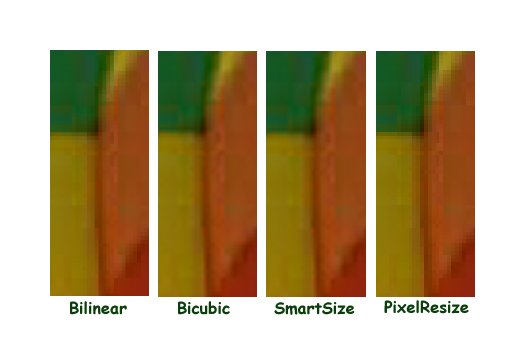
Just as its name implies, this method merely increases the size of the pixels—similar to what happens when you use the “zoom” tool in your image editor. Again, it is mechanical looking and hard-edged.
Bilinear Resampling
This is an interpolation method that uses the colours from four pixels, those to the right, left, above, and below the spot where the new pixel is to be created. They are added together, then divided by four to create the new colour. Bilinear is one of the two resampling methods that also antialiases the pixel colours to prevent sharp edges. This also has the effect of softening the resulting image.
Bicubic Resampling
In this case, eight pixels surrounding the one to be created are sampled—the ones used in bilinear, plus the four diagonals. The colours are then averaged with a preference for the predominant colours, creating a weighted average. Bicubic also is antialiased, so that the resulting image is softer than the original.
PhotoShop’s information generally does not suggest using one interpolation method or another for resampling to increase or decrease image size. However, PSP’s manual suggests using Bicubic for enlarging, and Bilinear for reducing. Looking at the mathematics, this may make a certain amount of sense. Try it for yourselves, and pick the method that you think gives you the best results for your purposes.
Reverse processes are used to reduce an image. In both cases, enlarging and reducing, problems arise: enlarging either softens (antialiasing) or adds harshness (nearest neighbour and pixel resize) to an image, and reducing causes loss of data, and therefore detail. Try to preplan the size image you want to end up with, avoiding resampling more than once. Do your editing on the “size-as” image, in lossless form (. BMP, or the native form of your image editor, like .PSP) and save a copy without changing the size, before, during, and after editing.
Finally, use your image editor’s ”unsharp mask” function to bring sharpness back to the interpolated image.
Copyright (C) 1999 Lesley O'Neil
Used by permission
Copyright (C) 1999 Mark T. Woodland
[Back to Contents] [Back to Home Page]